
Canva Magic Layers alternative: take the layers out as a PSD
Canva Magic Layers splits a flat image into layers you edit inside Canva. When the layers have to leave Canva, here is what Canva documents, and two real separations exported as a layered PSD.
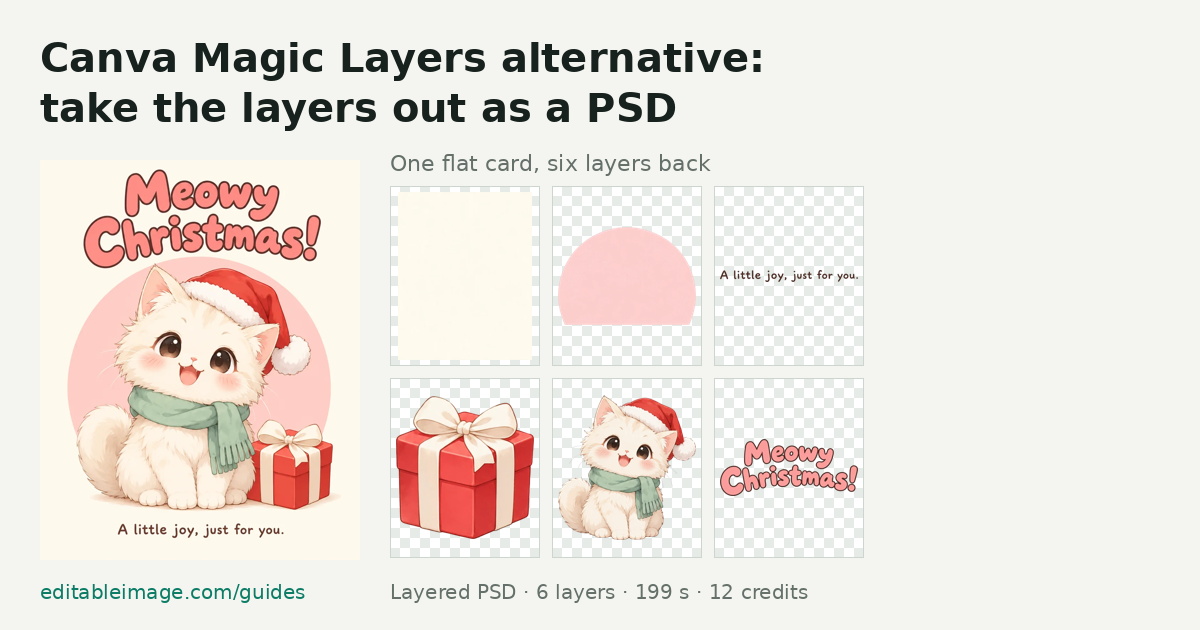
Canva Magic Layers turns a flat image into a layered design you edit inside Canva. That is the right tool when the finished thing is a Canva design. It stops being the right tool the moment the layers have to go somewhere else — into Photoshop, a motion graphics project, a print shop, a designer who does not use Canva — because Canva has no way to download them as a layered file.
This guide sets out what Canva itself documents about Magic Layers, then shows two real separations done with EditableImage's Image to Layers, which exports a layered PSD. We did not run Magic Layers for this guide; everything on Canva's side below comes from Canva's own pages, checked on 3 November 2026, with links.
In short
- Stay in Canva when the design will be finished in Canva and you want the text back as live, retypeable text. Magic Layers does that; EditableImage does not.
- Use a layered PSD when the layers have to leave Canva, when you have no Canva plan with AI allowance, or when the input is a WebP or a photo-like product poster.
- Both start from the same place: one flat image with no layers in it, where every hidden area has to be painted in by a model.
What Canva Magic Layers does
Canva announced Magic Layers on 11 March 2026 as a public beta in the United States, United Kingdom, Canada and Australia, "with global availability to follow". In Canva's words, "text is restored as live, fully editable text boxes, objects are identified as individual elements you can move and adjust, and backgrounds are cleanly preserved behind foreground content." On 8 June 2026 it became available to all users inside Gemini and ChatGPT, where you prompt to turn a generated image into an editable Canva design.
Canva's help page adds the limits:
- PNG and JPG files only, single page. No PDFs, vector graphics or multi-page documents.
- Images over 5,000 px on the longest edge are not supported.
- It "works best with graphic designs, illustrations and stylised visuals". Photorealistic images "may not separate as cleanly".
- Each use counts towards your monthly Canva AI allowance.
- Once separated, you can move, delete, resize, apply effects to and replace individual elements — inside the Canva design.
Where the layers stop
The layers exist as elements of a Canva design. Canva's list of download formats is JPG, PNG, WebP, SVG, PDF, PPTX (for presentations only), DOCX (for Docs), GIF and MP4. There is no PSD, so a separated image comes out of Canva flattened again, or as a presentation if the design is one.
Even a single element with transparency around it needs a paid plan: Canva says downloading with a transparent background "is only available to Canva Pro, Canva Teams, Canva Business, Canva Education, and Canva for Nonprofits plans".
None of that matters if the image is going to stay in Canva. It is the whole problem if it is not.
What a layered PSD gives you instead
Image to Layers separates the image into one transparent layer per element over a rebuilt background, and downloads them as a layered PSD (or a flat PNG of whatever you rearranged). Specifically:
- The layers leave with you. One Photoshop layer per element, named by what it is, at the canvas size. Photoshop, Photopea, Affinity and After Effects open it.
- The hidden areas are painted in. Each cutout sits over a background with the area behind it rebuilt, so moving the subject does not leave a hole.
- PNG, JPG or WebP, up to 20 MB. WebP — the format many AI image tools and websites hand you — goes in as it is.
- You can mark what to separate. Separate the whole image, or mark up to two elements and get just those, which usually means fewer layers and a smaller bill.
- Pay per layer, no subscription. Two credits a layer, capped at 12 layers. A failed run refunds its credits, and separating the same image again while it is open returns the layers already made at no charge.
- Retype through a redraw. The writing comes off as its own layer. To change the words, the image text editor redraws only the lines you mark, as a separate 4-credit step.
And the limits, said as plainly: every layer is redrawn by a model, so the stack is close to the original rather than identical (our Photoshop vs AI test measured how far it drifts); text layers are pixels, not live text; and a separation takes one to five minutes.
Test 1: an illustrated greeting card
This is the kind of image Canva says Magic Layers handles best — a flat illustration with clear shapes. A 1122×1402 Christmas card generated for our own tests: a kitten in a Santa hat, a gift box, a pink disc, a bubble-letter headline and a one-line greeting. Whole image separated, run on 2 November 2026.
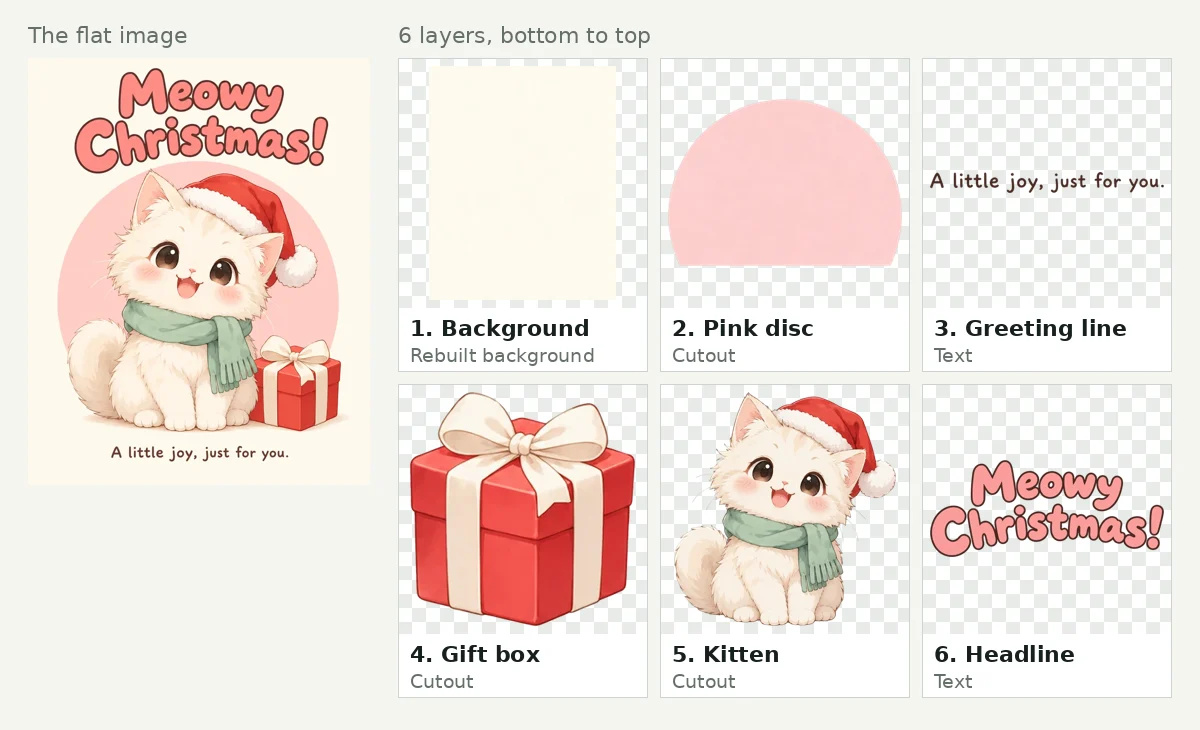
What came back. The kitten and the gift box are whole cutouts, so either can be moved and the cream background behind it is already filled in. The headline and the greeting are separate text layers that can be repositioned for a different format.
What to check. The pink disc came back a lighter pink and lost its lower edge, which sat behind the kitten in the original. Fur and ribbon edges are worth a look against a dark background before reuse. In Magic Layers, the headline would come back as live text instead — Canva would have to match a font to that bubble lettering, which is the question to check there.
Test 2: a photo-like perfume poster
The harder case for any layer tool, and the one Canva warns about: a photographic product shot. A 1122×1402 perfume poster generated for our own tests — a glass bottle, a calla lily, a pink disc, a two-line headline and small print. Whole image separated, run on 2 November 2026.
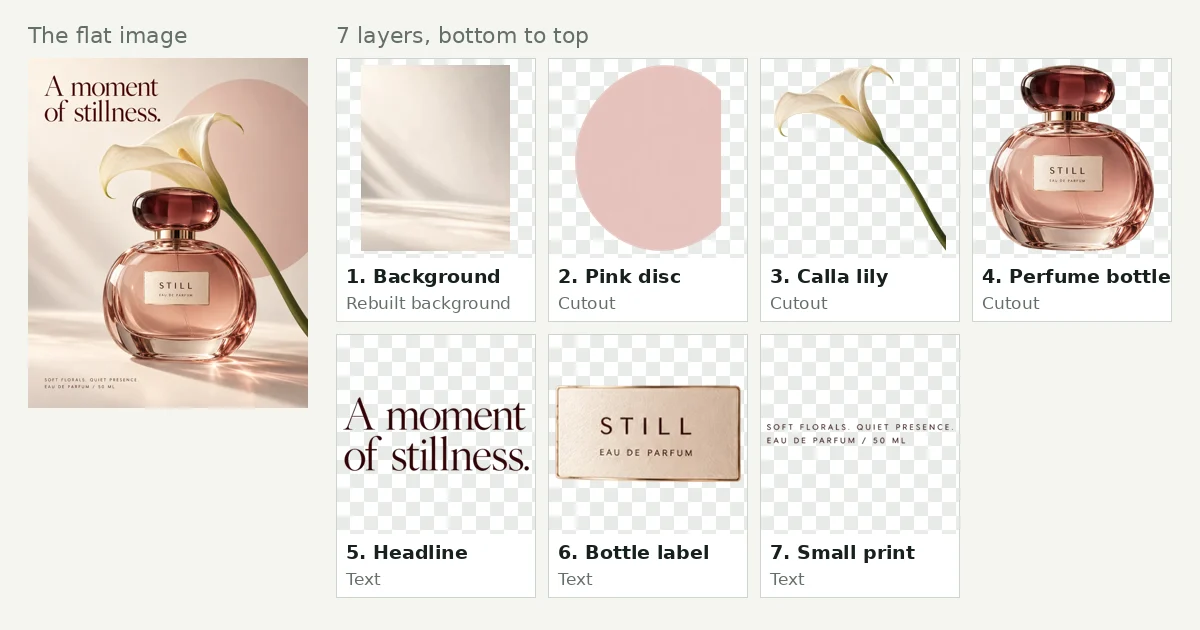
What came back. The bottle, the lily and the disc are separate cutouts; the headline, the bottle's label and the small print are three text layers. The label being its own layer means it can be moved off the glass or replaced.
What to check. The disc again came back lighter, and the light falling across the table under the bottle is softer than in the original. Glass is translucent, so look at the bottle's edges over a new background before using it at full size.
Side by side
| Canva Magic Layers | EditableImage Image to Layers | |
|---|---|---|
| Where the layers live | Inside a Canva design | A layered PSD you download |
| Layered download | None — no PSD among Canva's download formats | Layered PSD, or a flat PNG |
| Text | Live, retypeable text boxes | Pixel layers; retype through a separate redraw |
| Input | PNG or JPG, single page, up to 5,000 px | PNG, JPG or WebP, up to 20 MB |
| Photo-like images | "May not separate as cleanly" | Separated in Test 2; check translucent and soft edges |
| Choose what to separate | The image you select; Canva's help describes no way to pick parts | Whole image, or up to two marked elements |
| Price | Counts towards your Canva AI allowance | 2 credits a layer, max 24; 10 free credits for a new account |
| Availability | Public beta in the US, UK, Canada and Australia; in Gemini and ChatGPT | Any browser, with an account |
Canva's column is from its own pages as of 3 November 2026; ours is from the two runs above and the pricing page.
Which one to use
Use Magic Layers if you are already in Canva, the design will be finished and published from Canva, and the job is mostly changing words. Live text is the thing it does that a pixel layer cannot.
Use a layered PSD if the layers have to go to Photoshop, Photopea, After Effects or a person who works in them; if you need a cutout with transparency and are on Canva Free; if the image is a WebP or a photographic poster; or if you only need one or two elements out of it.
Or use both. Canva's help page says it imports Photoshop files in beta, with a warning that some elements may be rasterised. A layered PSD from EditableImage would arrive with each layer as an image element. We have not tested that import, so try it on one file first.
How we checked
The two separations were run on editableimage.com from the maker's own account on 2 November 2026, with the whole image selected; the timings and credits are what the tool reported, and the layer files are the ones linked above. Every statement about Canva comes from the Canva pages linked in the text, read on 3 November 2026. We did not run Magic Layers, so this guide does not compare the quality of its layers with ours — only what each tool documents and delivers.
Questions
- What is Canva Magic Layers?
- A Canva feature, launched in public beta on 11 March 2026, that turns a flat PNG or JPG into a layered design inside the Canva editor. Canva says text comes back as live text boxes, objects as separate elements, and the background is kept behind them. It started in the US, UK, Canada and Australia, and since 8 June 2026 it is also available inside Gemini and ChatGPT.
- Is Canva Magic Layers free?
- Canva's help page does not give it a price. It says Magic Layers counts towards your Canva AI usage allowance, which resets monthly and differs by plan, so check your own account. Separately, downloading anything from Canva with a transparent background needs a paid plan.
- Can I download Canva Magic Layers as a PSD?
- No. The download formats Canva lists are JPG, PNG, WebP, SVG, PDF, PPTX for presentations, DOCX for Docs, GIF and MP4 — there is no PSD. The layers live in the Canva design. To take an image's layers into Photoshop, Photopea, Affinity or an animation tool, separate it with a tool that exports a layered PSD.
- Does EditableImage give me live, editable text like Magic Layers?
- No, and this is where Magic Layers is ahead. EditableImage puts the writing on its own pixel layer that you can move or hide; changing the words goes through its image text editor, a separate 4-credit redraw. Canva says Magic Layers restores text as live text boxes. If retyping the words inside Canva is the whole job, use Magic Layers.
- Can I bring EditableImage's PSD into Canva?
- Canva's help page says it imports Photoshop files in beta, up to 300 MB and 300 image layers, and that some elements may be rasterised. EditableImage's layers are raster layers already, so each one would arrive as an image element. We have not run that import ourselves; try it on one file before relying on it.
- What does a separation cost on EditableImage?
- Two credits a layer, capped at 12 layers, so 24 credits at most. The six-layer card below cost 12 credits — about $0.48 to $0.72 depending on the credit pack. A new account gets 10 free credits; if a separation costs more than you have, it opens as a preview and the rest unlocks the full layers.