
A PPTX is not necessarily an editable slide: five tests that matter
A screenshot in a .pptx is still a screenshot. Here is how to check what an image-to-slide export actually lets you edit.
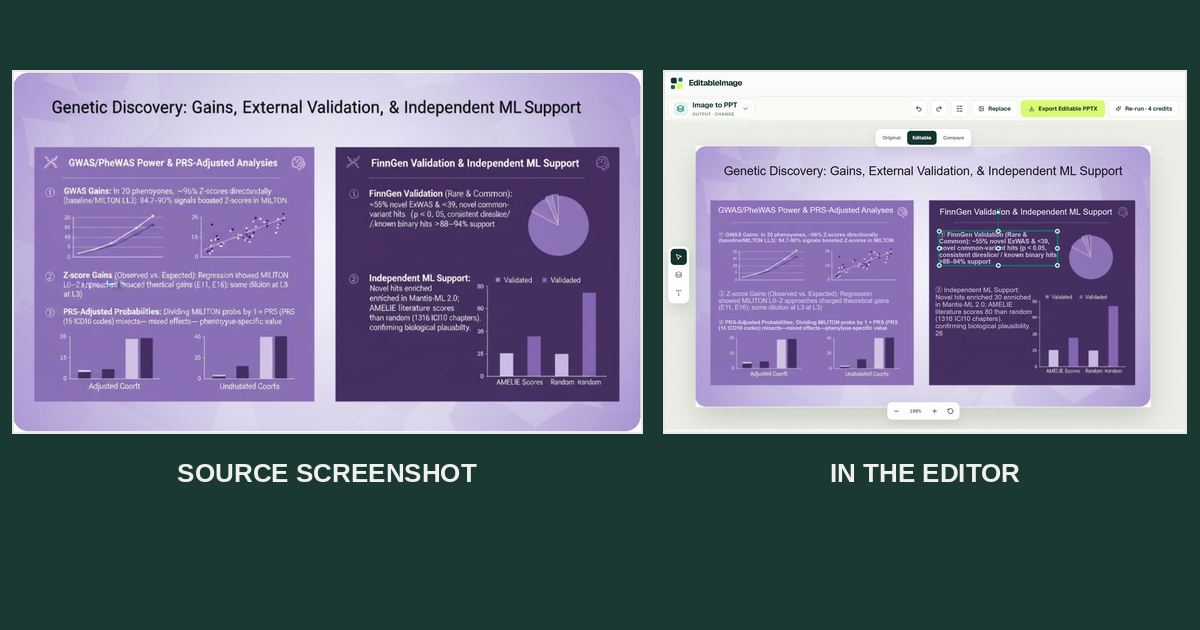
A screenshot pasted onto a PowerPoint slide is technically a .pptx. It is also still just a screenshot. You can resize it, but you cannot rewrite the title, move a KPI card, or correct a number without rebuilding part of the slide.
That distinction matters when the original deck has disappeared and the only surviving copy is a PNG in a wiki, a PDF export, or a screenshot in a chat thread. The useful question is not “Can I get a PPTX?” It is “Which edits will the downloaded PPTX actually let me make?”
Here is a five-part test you can run on any image-to-slide workflow. The point is to test the exported file, not just trust a polished preview.
1. Can you change the words as words?
Click the main title and replace one word. Then try a small label, such as a KPI value or footnote.
If the text is a native text box, you should be able to select characters and change the copy. If the output merely puts a new text box over old text baked into the background, the old letters may reappear when the replacement is shorter. Move the text box temporarily and inspect what is underneath.
Typography is a second test. A converter may recognize the correct words but substitute a font, weight, or line break. That is recoverable, but it is still review work.
2. Do the pieces move independently?
Try moving the title, one card, and the chart region. If the whole slide moves together, the file is mostly an image inside a PPTX wrapper.
There is an important distinction inside this test: a chart that moves as one graphic is not necessarily a native PowerPoint chart with an editable data table. Likewise, a recovered icon might be an independent image rather than a vector shape. Decide what level of editing you need before judging the export:
| What you need to do | Minimum useful result |
|---|---|
| Rewrite a heading | Native text box |
| Reposition a visual | Separate slide object |
| Recolor individual parts | Editable shapes or layers |
| Change chart values | Native chart data or a deliberate redraw |
“Editable” is a spectrum, not a single checkbox.
3. What appears when you move an object away?
This is the test that polished before/after pictures often skip.
Move the title to an empty corner. Is there a clean background underneath, or is the old title still visible? Move a card. Does it leave a rectangular hole or a blurry patch?
Reconstructing the background behind a foreground element requires an educated guess: the original pixels were covered. On a plain gradient that may be easy. On a photograph or intricate texture, expect to inspect and possibly repair the fill. Keep the original image beside the reconstructed slide so you can spot changes.
4. Did the small details keep their meaning?
A slide can look convincing at a glance while getting a tiny but important detail wrong: a percentage, axis label, date, unit, legend entry, or footnote. Compare each one against the source image. Pay extra attention to low-resolution text and labels placed over busy imagery.
For data-heavy slides, treat the converted file as a draft until the numbers have been checked by a human. Visual similarity is not the same as factual accuracy.
5. Does it survive a round trip?
Download the PPTX, close the web editor, and open the file in the PowerPoint application your team actually uses. Make one text edit and one layout edit there. Check for substituted fonts, shifted objects, or a slide that became flat during export.
This matters because an interactive browser preview can demonstrate the intended structure without proving that the downloaded file preserves it.
Why convert an image to editable PowerPoint?
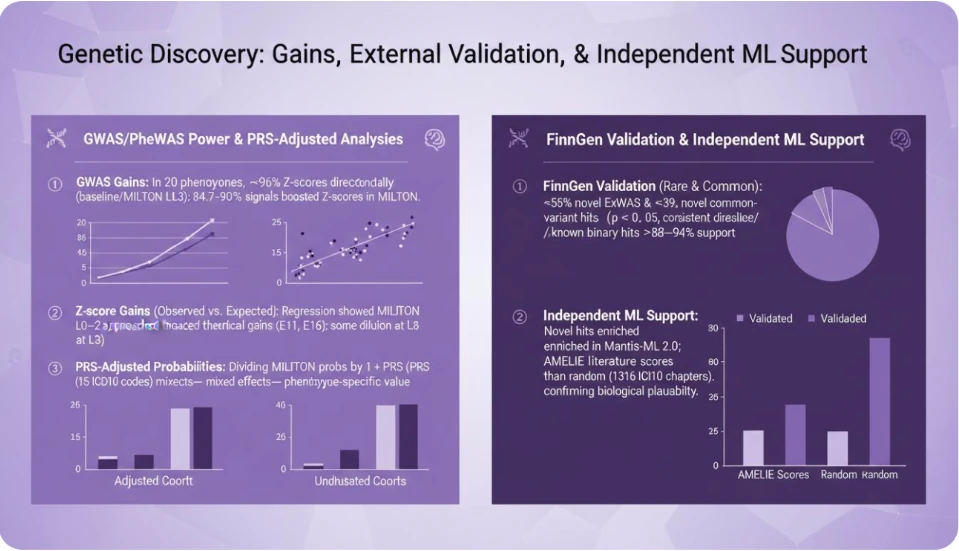
Imagine you inherit this “Genetic Discovery” slide as a single image and need to update its explanation for a new audience. Rebuilding the two-column layout, charts, and labels by hand would take time before you could even start editing the message. In the original image, none of those elements can be selected independently.
The next screenshot shows the slide in EditableImage’s Image to PPT editor. A text region in the right-hand panel is selected as a separate object. The visual layout is still recognizable, but there is now a starting point for changing copy and rearranging parts of the slide instead of recreating everything from a blank canvas.
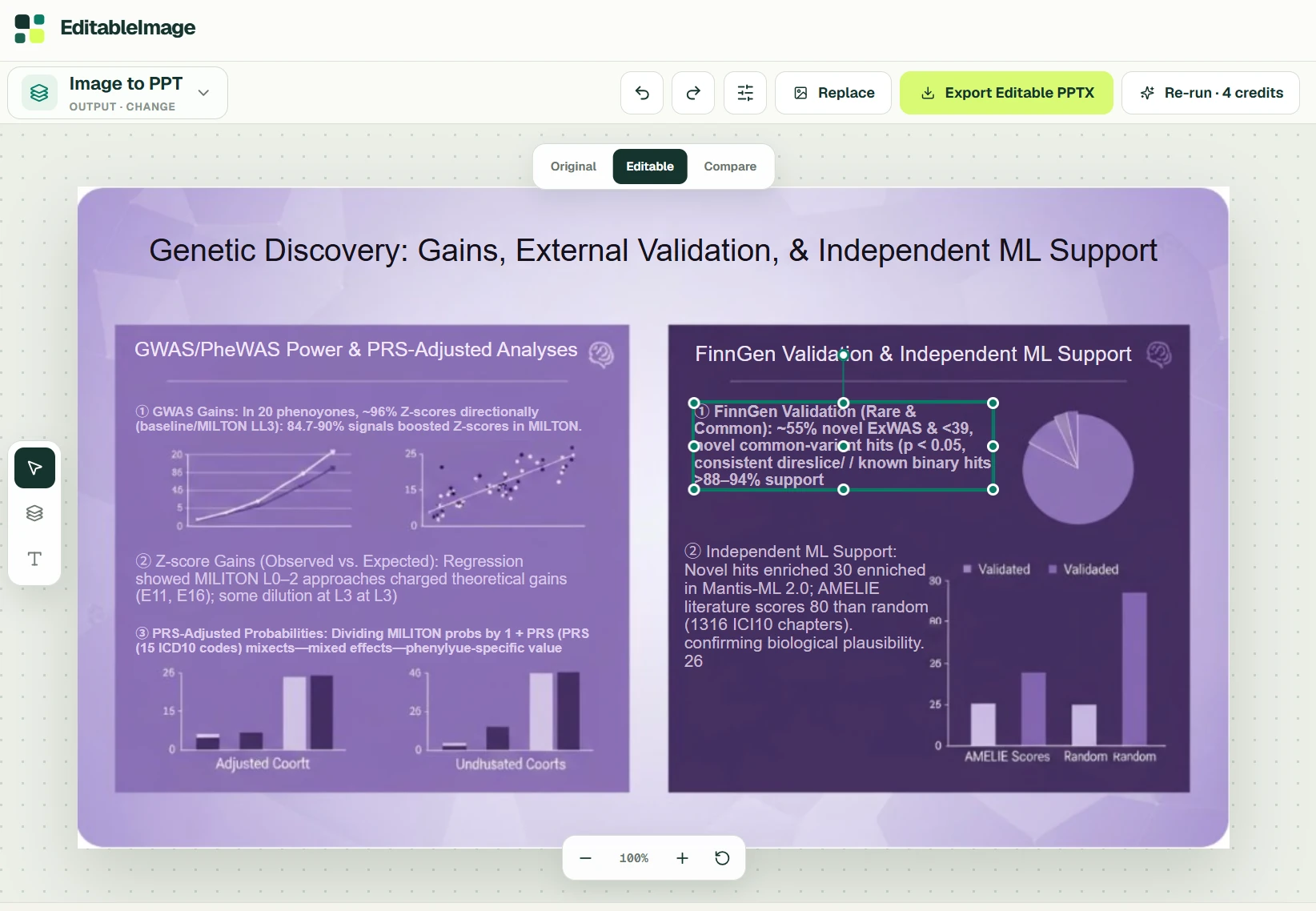
That is the practical value of an image-to-editable-PowerPoint workflow: it can turn a screenshot-only slide into a reconstruction draft you can work from. For an old presentation that needs a revised heading, a corrected paragraph, or a new arrangement, the time saved comes from not having to redraw the whole slide first. The original remains beside the result, making it easier to spot what needs fixing.
The trade-off is visible too: some dense text in this result is garbled or overlaps nearby content. Check every scientific label and number against the source before reuse. These screenshots show object separation in the browser editor; they do not prove that chart values are native PowerPoint data, that every background is clean, or that the exported PPTX passes the round-trip test.
If you have a slide you actually need to revise, try converting one image with EditableImage. Correct the obvious text errors, export the PPTX, and run the five tests above. Judge it by the manual work it saves on your slide—not by a perfect-looking preview.
A short test with your own slide
If you have a screenshot-only slide, use a full-resolution PNG, JPG, or WebP rather than a compressed chat thumbnail. Then:
- Write down two edits you actually need to make—for example, change a KPI and move a card.
- Convert that one slide and compare the result with the original. Fix obvious recognition errors before export.
- Download the PPTX and run tests 1–5 in PowerPoint. Keep the source image next to it while you inspect small details.
- Judge the result by manual work avoided, not by the number of objects reported. If your requirement is editable chart data or an exact licensed typeface, expect to rebuild or supply those parts yourself.
For context, the current EditableImage workflow requires sign-in, uses 4 credits per slide image converted, and gives new accounts 10 free credits without a card. The page estimates usually 45–90 seconds for processing. Images are sent to third-party AI services, are not published, and are deleted after 24 hours. Check the current terms before uploading anything confidential.
If all you need is a slide that looks right, simply placing the screenshot on a slide may be enough. If you need to reuse its words and layout, the exported file—not its extension or its preview—is the evidence.
Disclosure: I built EditableImage. AI assistance was used to draft and edit this article; the product details above were checked against its public pages. I have not presented the browser preview as an independent test of every exported PPTX.
Questions
- Does the chart become an editable PowerPoint data chart?
- Not necessarily. The chart region can be separated from the rest of the slide as its own object, but a complex chart may remain an image rather than recover its original data series. Check the exported PPTX before relying on it.
- Will PowerPoint use the exact original font?
- A flat image does not contain the original font file. The converter measures size, weight, colour and alignment from the image, then uses a close available typeface, so expect some typography review.
- How much does a conversion cost?
- Each slide image you convert costs 4 credits. New accounts get 10 free credits without a card, which covers two conversions.