
How to edit text in a screenshot: 3 ways compared on one headline
Cover the old words and retype, let an editor detect the text and retype in place, or redraw only the marked line. One screenshot, one word changed, four tools, measured.
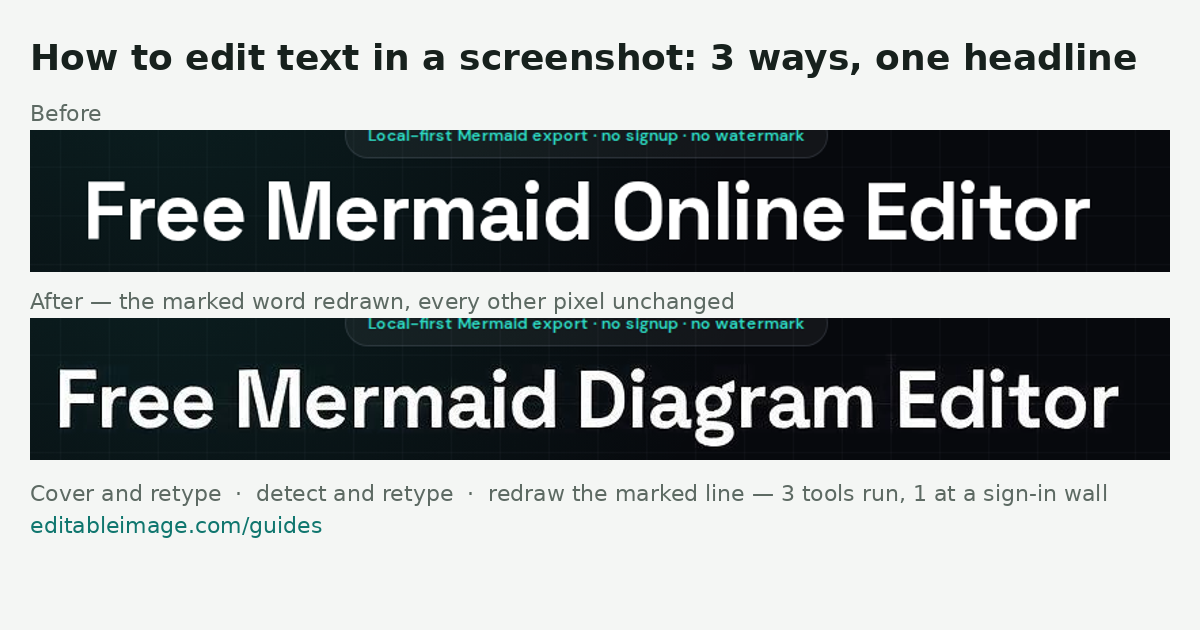
The words in a screenshot are pixels, so there are only three ways to change one. You can cover the old word and type a new one on top, in any image editor. You can let an editor detect the text, erase it and let you retype it in place, in a font it guesses. Or you can mark the line and have a generative model redraw it in the picture's own lettering. Each keeps something different and breaks something different, and the way to see which is to put one screenshot through all three.
So we did: one word in a headline, four tools, and two numbers for each — how long it took, and how many pixels outside the headline changed.
The test: one word in a headline
The screenshot is the home page of Mermaid Online, a site by the same maker, captured at 1280×720. The task is to change the headline Free Mermaid Online Editor to Free Mermaid Diagram Editor: a longer word in a bold white display face on a dark grid background, which is the kind of edit a product rename or a documentation fix actually asks for. The rest of the page — a badge above the headline, two lines of body copy, two buttons, a dense editor below — must come through untouched.
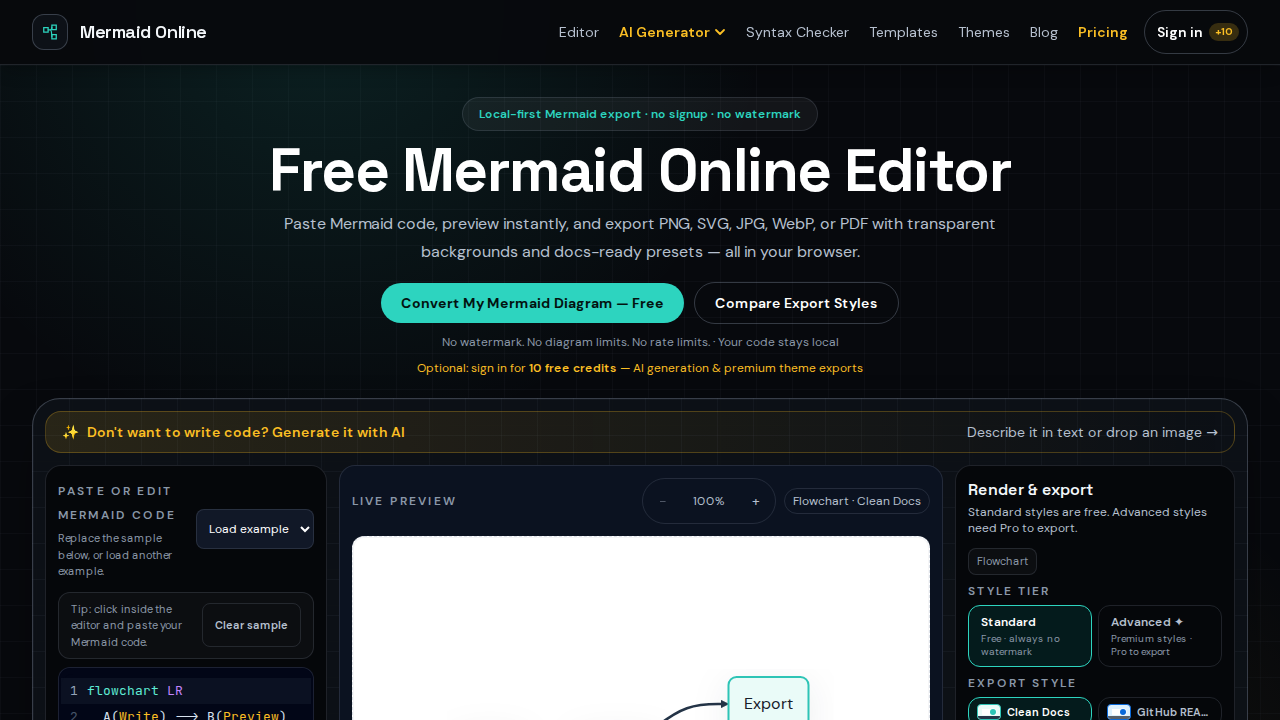
To score "untouched" we compared every output with the input pixel by pixel and counted the pixels that changed by more than a small threshold outside the band the headline sits in. Zero is the right answer. Anything else is either a watermark or collateral damage.
Way 1: cover the old word and retype it
Open the screenshot in any image editor — Photoshop, Photopea, Preview, even PowerPoint — and:
- Draw a rectangle over the old word, filled with a colour sampled from the background beside it.
- Add a text box, type the new word, and pick the closest font, size and colour you can.
- Nudge it until the baseline and spacing match the words either side, then flatten and export.
This is the method every other method is trying to automate. It keeps everything outside your patch exactly as it was, because you never touched it. It fails on anything behind the word that is not a flat colour — here, the faint grid lines through the headline would end under a solid patch — and the font is only as good as your eye and your font menu. Online tools such as Webability's screenshot editor do this in the browser for free; they add text and blur, and the matching is still yours to do.
Way 2: detect the text, then retype it in place
These editors run OCR over the screenshot, find every line, guess its font, size and colour, and give you a list. You pick a line, type the replacement, and the editor erases the old pixels, repaints the background and sets the new words where the old ones were.
We ran two that work without an account:
- ScreenshotTextEditor — free, no account, no watermark. Detection took 45 seconds and found 54 lines of text, each with a font guess (Roboto 18px, Inter 15px). The edit itself took 7 seconds.
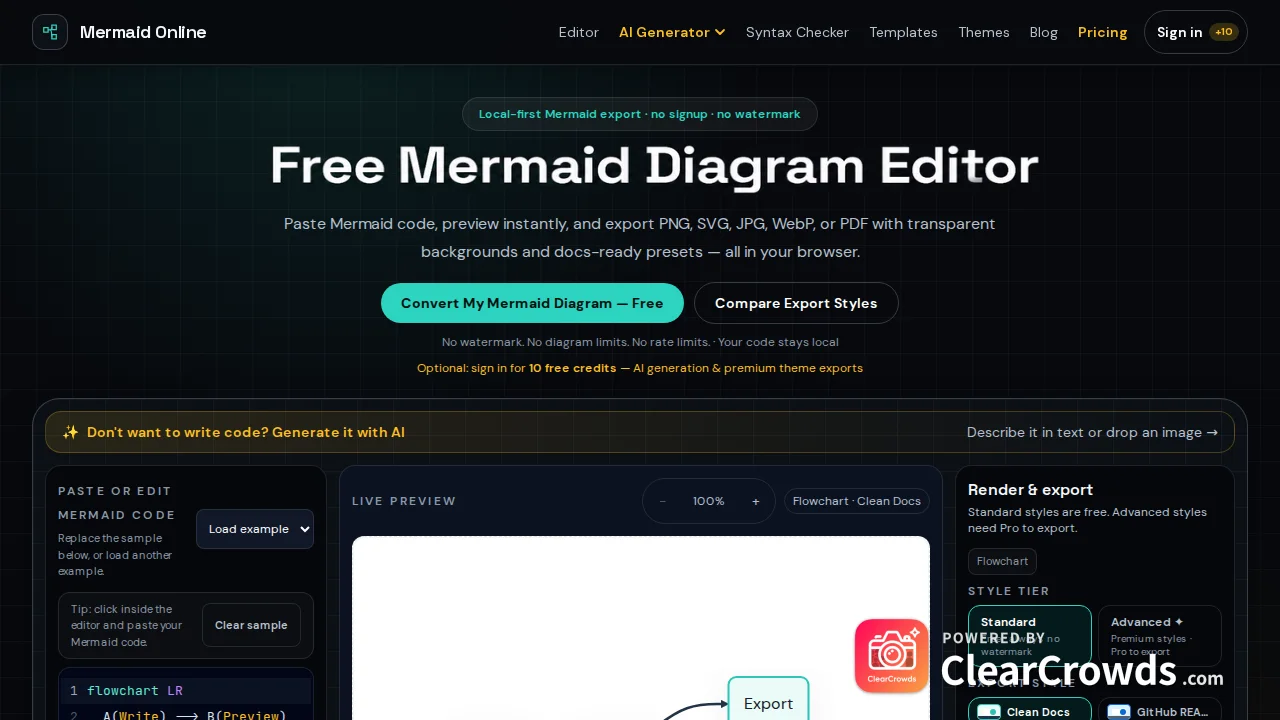
- ClearCrowds — free tier, no account. The text was detected within the 8 seconds we waited after upload, and the edit took 4. The download dialog locks HD and No watermark behind Premium; the free export was still 1280×720 in our case, with a watermark in the lower right.
We also tried EditTextImage, which asks you to sign in before it generates, and looked at PhoText and Fotor without taking either to a download.
Way 3: redraw only the marked line
EditableImage takes a different route. You draw a box around the word, type the new one, and a generative model redraws the picture with the change; by default only the line you marked is taken from its answer, and every pixel outside that line is your original. It needs an account and costs 4 credits a round; new accounts get free credits. The runs below went through the same code and models that serve the site, from a developer build, so that we could time them.
Because the redraw comes from one paid answer, the result also has a free Whole redraw view that uses the regenerated picture across the whole canvas. We downloaded both.
What came back
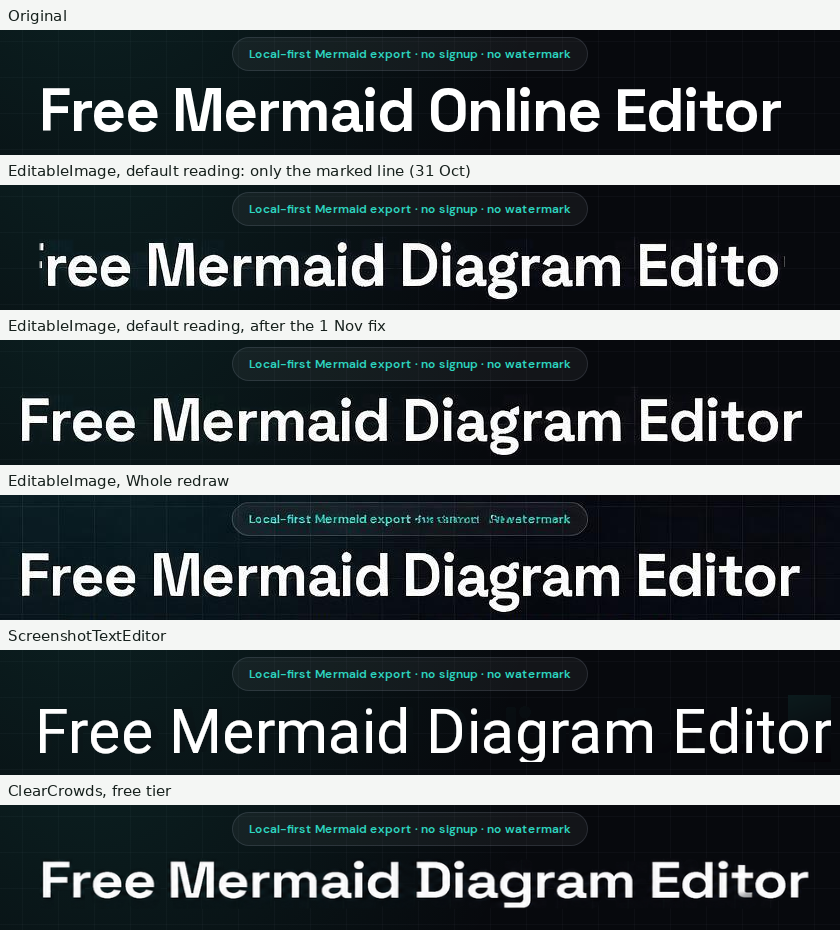
| EditableImage, default | EditableImage, Whole redraw | ScreenshotTextEditor | ClearCrowds | |
|---|---|---|---|---|
| Time | 48–55 s | same answer, no extra time | 45 s detect + 7 s edit | ~8 s detect + 4 s edit |
| Account | Yes, 4 credits | — | No | No |
| Output | 1280×720 PNG | 1280×720 PNG | 1280×720 PNG | 1280×720 PNG, free tier |
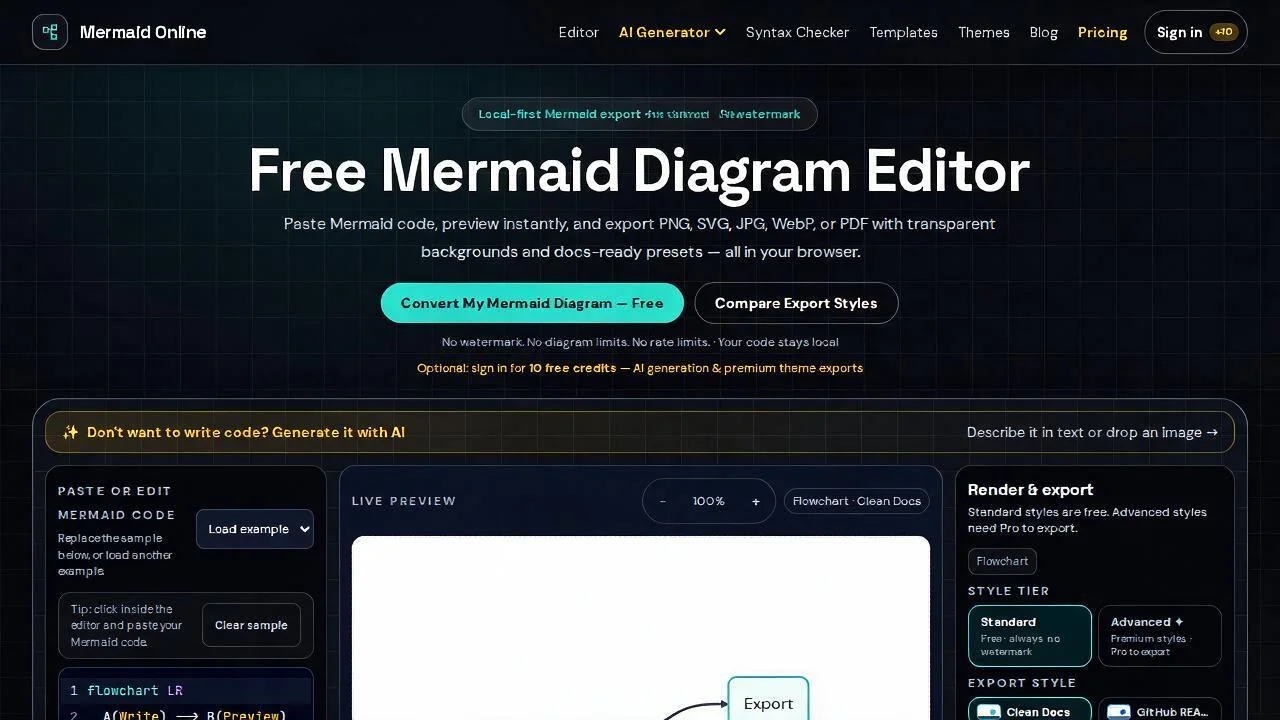
| Pixels changed outside the headline | 0 | 46,845 (5.1%) | 0 | 9,200 (1.0%), all watermark |
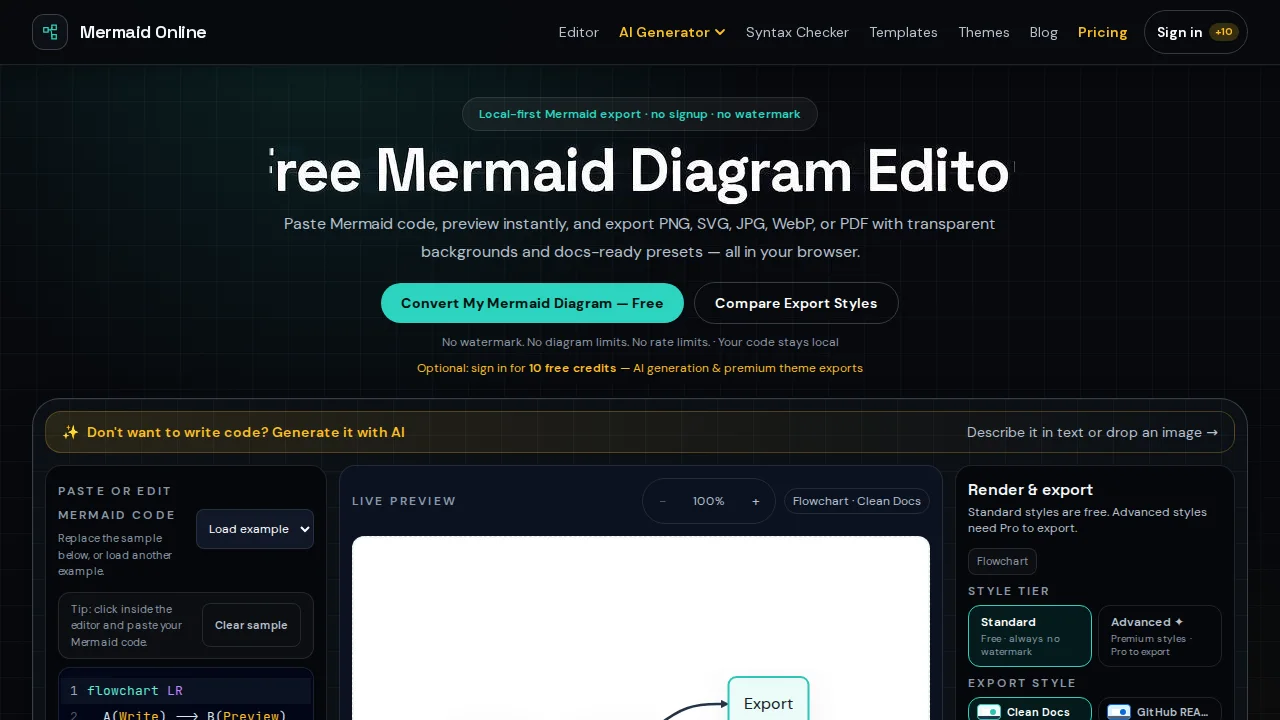
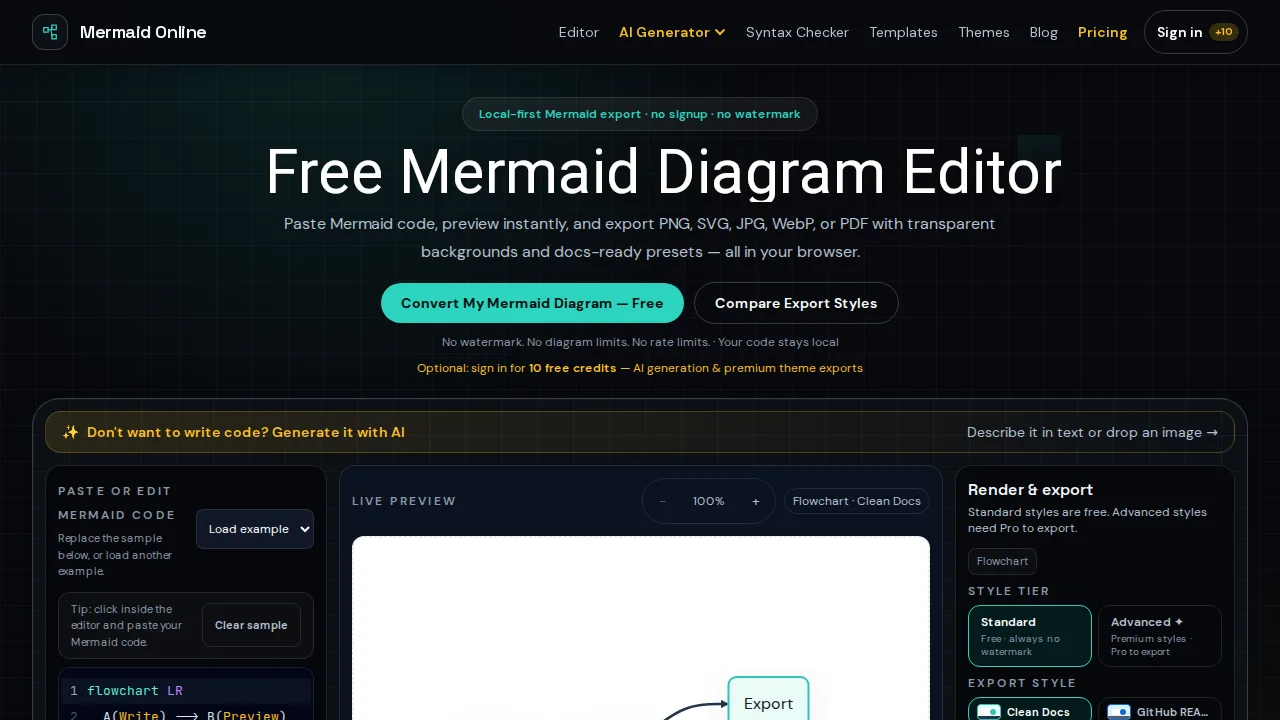
| Weight and colour of the new word | Matches the bold display face | Matches | Lighter weight; a regular face, not the bold | Close to the bold |
| Background behind the new word | Grid lines kept | Grid kept, whole picture slightly soft | Two pale rectangles where background was repainted | Clean |
| Collateral | None since 1 Nov; on 31 Oct the line's end letters were clipped | The badge line above garbled | None outside the headline | Watermark, ~370×80 px |
Reading the results
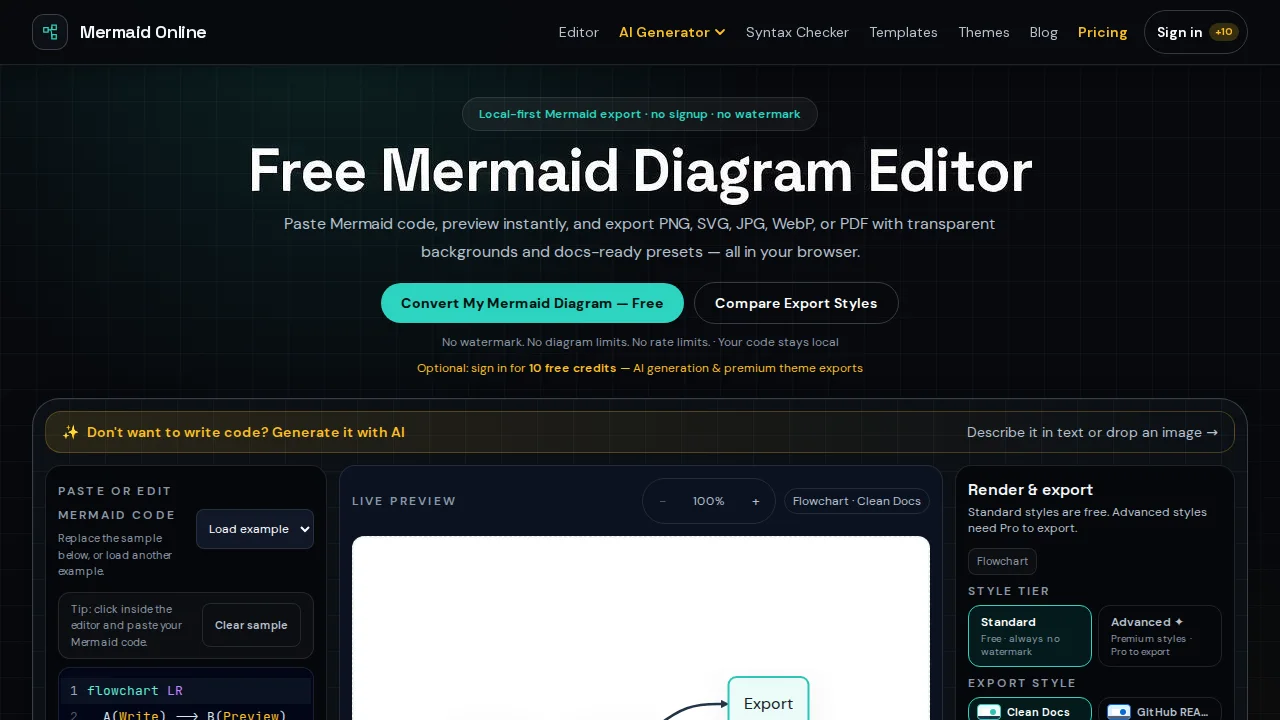
EditableImage's default reading is the one result of the four that matched the headline's weight and colour over the original grid with not one pixel changed outside the line — measured, not eyeballed. The new word sits in the bold display face the page uses, on the page's own background, with no patch and no watermark. On 31 October the line's first and last letters came back clipped, because Diagram is longer than Online and the region that keeps the redraw stopped where the old line had ended; that was fixed on 1 November, and the same edit re-run gives the whole headline (third row of the strip, and the full output). The Whole redraw view, offered free from the same answer, regenerates the whole picture and on this screenshot softens it and garbles the small badge line above the headline; it is the fallback for a textured background where the default leaves an edge, not the first choice.
ScreenshotTextEditor left the rest of the picture alone, measured, and its detected-text list is a genuinely useful map of the screenshot. Its headline is set in a regular weight where the original is bold, so the line reads as a different site's, and the background it repainted behind the old word shows as two pale rectangles against the grid. It is the only tool here that is free, account-free and watermark-free at full size.
ClearCrowds produced the closest-looking headline of the three automated tools, in a bold face on a clean background, in twelve seconds. The price is a watermark across the lower right on the free tier, and HD behind a paywall; for a screenshot going into documentation that is a real cost, for a quick mock-up it is not.
Which way, when
- A headline, a label or a button where the lettering has to match and nothing else may move: redraw the marked line — in this test the only result with the right weight and colour and zero pixels changed outside the line. Check the ends of the line and the lines beside it before you export.
- A flat-colour background, a font you have, one edit: cover and retype. Nothing beats it for control.
- A quick mock-up where the font only has to be close: detect and retype — ScreenshotTextEditor if you need it free and clean, ClearCrowds if a watermark is acceptable and a closer weight matters.
Before you export
Zoom to 100% and read the new word letter by letter against the old one. Check the ends of the edited line, which is where every method here left its mark. Look at the lines immediately above and below for repainted patches or garbled small type. Then compare the output's pixel size with the input's — a free tier that downscales has cost you more than a watermark would.
Questions
- Can I edit the text in a screenshot without Photoshop?
- Yes, three ways. Any image editor, including PowerPoint or Preview, can cover the old words with a patch and a new text box. Online editors such as ScreenshotTextEditor and ClearCrowds detect the words and let you retype them in place, without an account on their free tiers. EditableImage redraws the line you mark in the picture's own lettering. All three are shown below on the same screenshot.
- Will the new text match the original font?
- Only approximately, because a screenshot holds letter shapes and not a font file. Detect-and-retype editors guess a font and may land on the wrong weight, as ScreenshotTextEditor did here. A generative redraw copies the lettering it sees, which matched the weight but clipped two letters. Covering and retyping matches exactly only if you know and have the font.
- Does editing one word change the rest of the screenshot?
- It need not. In this test EditableImage's default reading and ScreenshotTextEditor both left every pixel outside the headline identical to the original, measured, not eyeballed. ClearCrowds changed about one per cent of the picture, all of it the watermark its free tier adds. EditableImage's Whole redraw view regenerated the whole picture and garbled a smaller line, which is why it is a fallback and not the default.
- Which free screenshot text editor needs no account?
- Of the tools tried on 31 October 2026, ScreenshotTextEditor produced a full-size download with no account and no watermark, and ClearCrowds produced one with no account but with a watermark and the HD option locked. EditTextImage asks you to sign in before it generates. EditableImage needs an account and charges 4 credits per round, with free credits on sign-up.
- What is the best screenshot to start from?
- The original PNG your screenshot tool saved, not a copy that went through a chat app. Text that has been compressed once already is harder to read for OCR and gives a redraw less to copy. Edit one word or line at a time, and keep the original beside the result for the comparison.